Making a HUD theme
Download the HUD theme kit and make your sim's own HUD art - templates for the Classic, Side menu and Portrait layouts, the pictures and icons a theme needs, and their sizes.
For staffA HUD theme is a folder of PNG pictures plus two colours. The theme kit has everything an artist needs to make one: a template for each Home layout, the pictures to replace, and what size each one should be.
Download the HUD theme kit (zip, 13 MB)
To set a theme’s colours and give it to a group, see The HUD look.
What’s in the kit
- 1 Classic.psd, 2 Side menu.psd and 3 Portrait.psd: Home in each layout, 1024 × 512.
- 4 Full page.psd: a page opened full height, 1024 × 1024.
- Guides: the same guides as plain PNG files, for editors without layers.
- Parts: every picture and icon a theme uses, from the Default theme. Replace each one with your own and keep its file name.
- Parts sheet.png: what each picture is, the size it’s shown at and where it shows.
- Colours.txt: a form for the theme’s two colours.
- READ ME FIRST.txt: the steps below, for the artist.
The templates open in Photoshop, GIMP, Krita and Photopea, which is free in a web browser.
The layers
Each template has the HUD split into layers, so you can paint the background and still see what sits on top of it:
- Background.png: your background. Paint here.
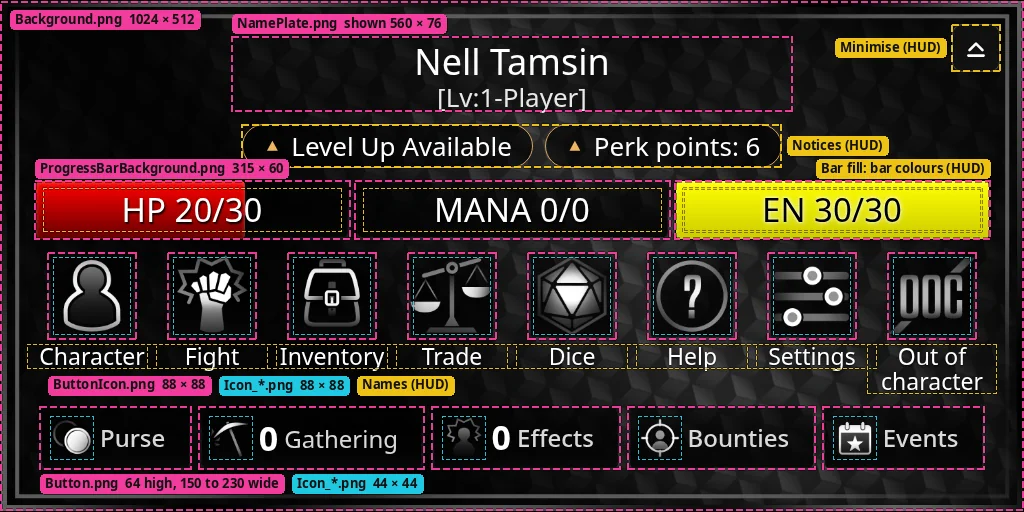
- Theme parts (Classic only): the name plate, bar frames and buttons where they sit. You can paint them in place and crop each one out.
- Icons: the icons where they sit.
- HUD draws this: the text, bars and notices, and the panels in Side menu and Portrait. The HUD draws these on top of your art in your colours, so you don’t paint them.
- Guide: boxes and sizes. Hide it before you save.
- Other pages (hidden): the Back and Home buttons along the bottom of every page except Home.
- Finished look (hidden): the Default theme as it really looks, to compare with.
The guide’s colours tell you who makes each part:
- Pink: a picture you make.
- Blue: an icon.
- Yellow: the HUD draws it.
- White dots: open space, where your background shows.
Which parts each layout uses
Every layout shows the same theme. A player can switch layout under Settings, so a background should look right behind all three.
- Classic uses the most pictures. It needs the background, the name plate, the bar frames, the icon buttons, the counter buttons and the icons.
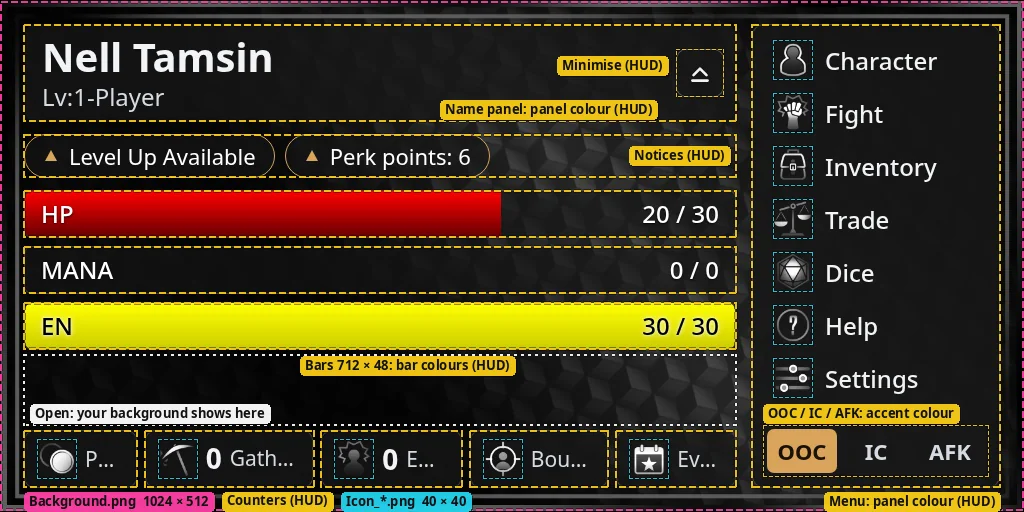
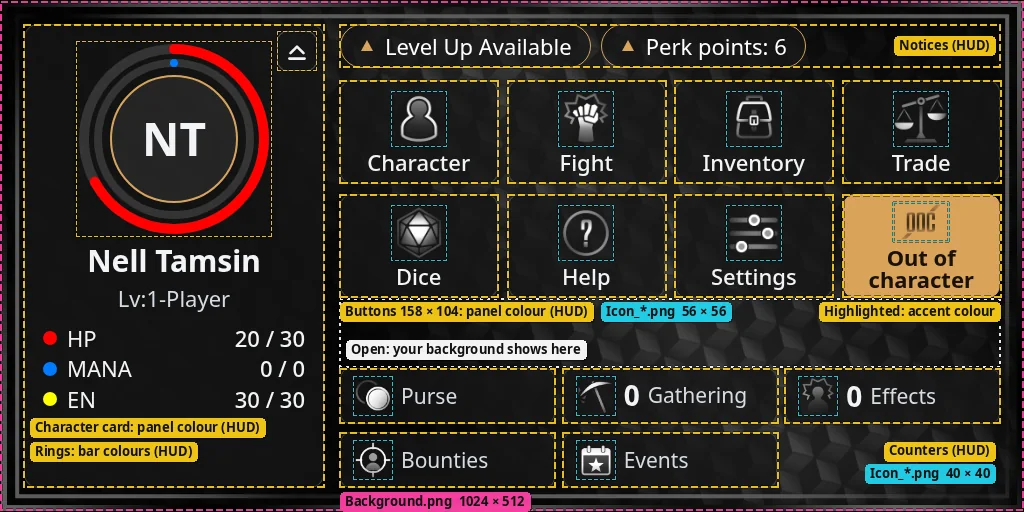
- Side menu and Portrait use only the background and the icons. The HUD draws their panels in your panel colour and highlights in your accent colour.
Making the theme
- Paint the background on the Background.png layer. Hide every other layer and save it as
Background.png, 1024 × 512. - Do the same in 4 Full page.psd for
Background-Square.png, 1024 × 1024. It shows behind pages opened full height and long dialogs. You can leave it out, and the HUD then stretchesBackground.pnginstead. - Make the pictures in Parts › Images, keeping each file name. Parts sheet.png gives the size each one is shown at.
- Make the icons in Parts › Icons: 128 × 128, with a see-through background.
- Fill in Colours.txt with the accent and panel colours.
Tips
- Make each picture at the size it’s shown at, or twice that for sharpness. Pictures are stretched to fit, so the wrong shape gets squashed.
- Everything outside a button’s shape should be see-through. The two backgrounds are solid.
Button.pngis also drawn “9-slice” in dialogs. The outer 16 pixels on each side keep their shape and the middle stretches, so keep its corners and frame inside that border.- Keep the background calm where text sits. The HUD’s text is white, or dark on a light accent colour.
- Simple icons in one light colour read best. On the highlighted Portrait button the HUD shows the icon as a solid black or white shape.
- In Second Life the HUD shows exactly 1024 × 512, or 1024 × 1024 when a page opens full height. Anything outside that isn’t seen.
Putting it on your sim
- Zip the Images folder, the Icons folder and Colours.txt, and send them with the theme’s name to the Black Box team on the Black Box Discord. The team adds the folder to your sim’s server.
- Once it’s there, set its colours under Server › Settings › HUD themes.
- Make it your sim’s default, or give it to a group under Staff › Groups. The HUD look has the steps.