Power, doors and alarms
Set up doors with access lists, wire a power grid with switches, panels and generators, decide what happens when the power drops, add interactions such as lockpicking, and run alarms, lockdowns and macros.
For staffThis guide goes deeper into the working parts of your sim’s world: doors that check who’s allowed through, a power grid that feeds lights, doors, vendors and crafting stations, interactions such as forcing a door, and the alarms and lockdowns that follow. World building covers the basics of every object, and In-world setup the scripts and auth keys.
Where it lives
| Page | Where | Who |
|---|---|---|
| Objects, Power grid, Zones, Bulk edit, Macros, Setup | World Building | env_edit (and admin); the power grid and lighting pages also lighting_edit |
| Lighting presets | World Building | lighting_edit |
| Alarm presets and alarm zones | World Building, and Alarms › Presets and Zones | admin |
| Lighting control | Storytellers | env_light_control |
| Alarms (Control) | Storytellers | env_alarm_trigger |
| Weather & environment, Sound board | Storytellers | env_light_control, hud_sounds |
| Logs › Environment, Env interactions | Logs | view_logs |
Staff with env_alarm_trigger can only work alarms, and env_light_control only lights and switches. Power panels and generators need env_edit.
Every object’s page
Open World Building › Objects and pick one. The list can be filtered by category, type, zone and when objects last checked in. The object’s page has tabs:
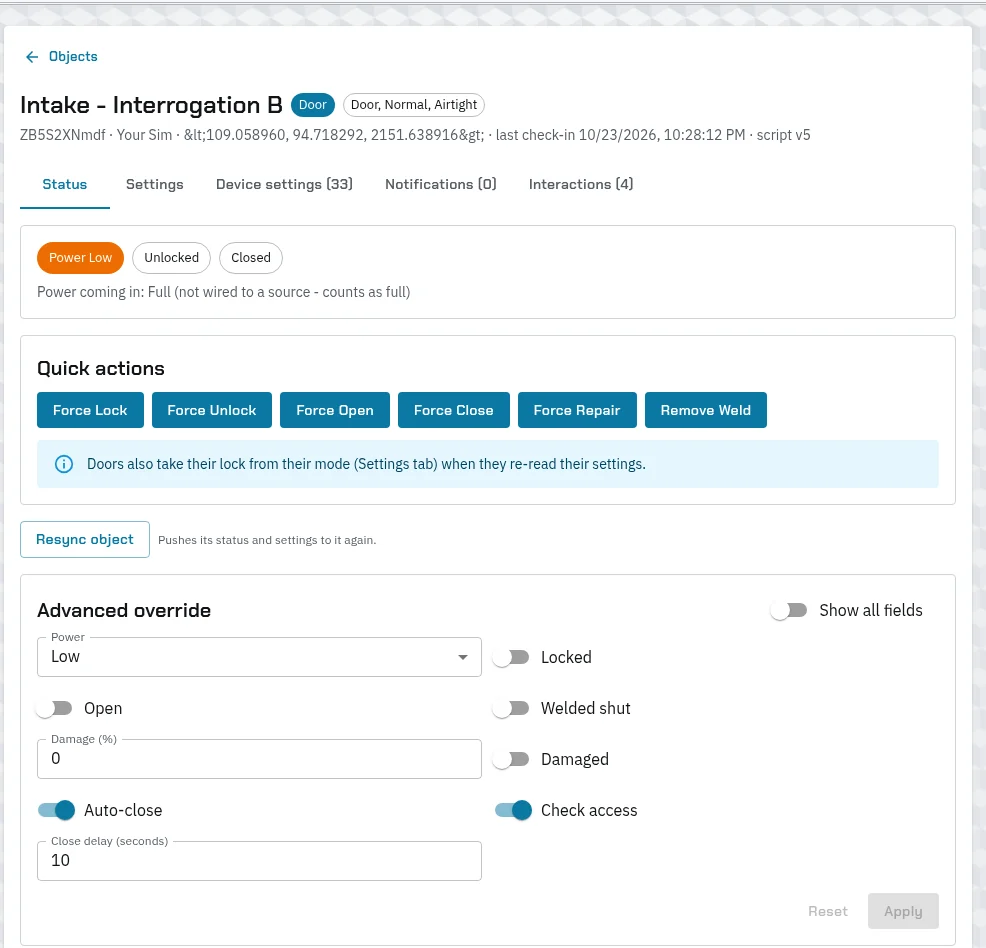
- Status: its state, the power coming in, Quick actions, Resync object to push everything to it again, and an Advanced override for setting any field by hand.
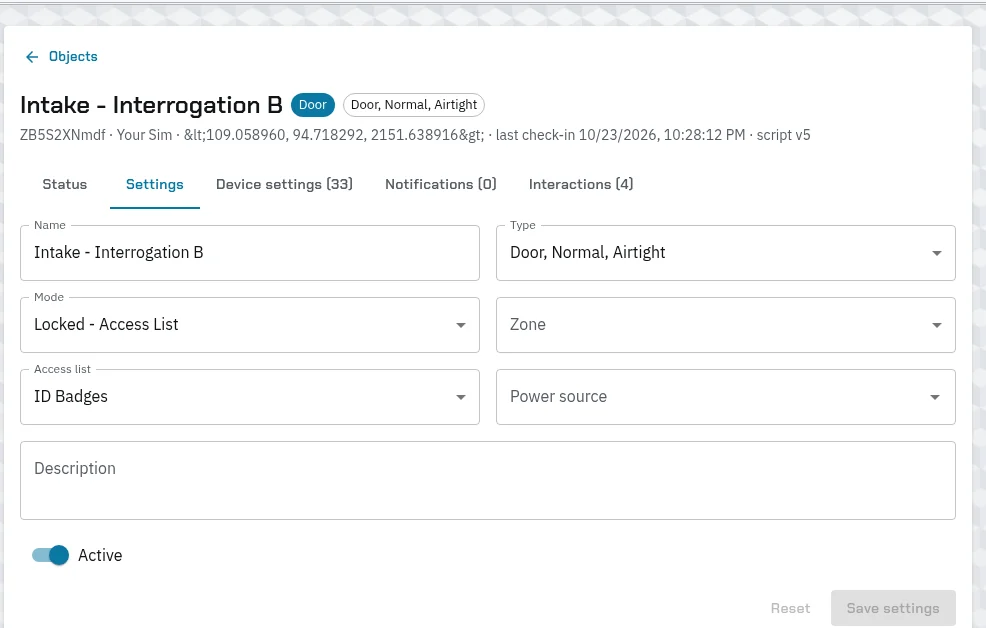
- Settings: its Name, Type, Mode, Zone, Access list and Power source.
- Device settings: the values its type gives it, which you can change for this one object.
- Notifications: what happens elsewhere when something happens to it.
- Interactions: what players can try on it, such as forcing it open.
- Generator, on a generator: its fuel.
Doors
Mode: how a door locks
A door’s Mode, on its Settings tab, decides whether it’s locked and whether it checks who’s allowed:
| Mode | What it does |
|---|---|
| Open Access | Anyone can open it. |
| Locked - No access | Nobody in character can open it. |
| Locked - Access List | A card reader: it checks the person against its Access list. |
These are the usual modes. Your sim can add its own on the Setup page. Changing a mode’s values changes every door in it.
Keep a door locked with its Mode, not a quick action. Force Lock and Force Unlock take effect at once, but a door takes its lock from its mode again whenever it re-reads its settings: after a region restart, a Resync, or a settings save. Use quick actions for the moment, and the mode for anything that should last.
Access lists
On World Building › Setup, the Access lists tab, press Add list, then Add rule for each:
- Rule for: Account, Character, Class, Carries item, Group or Role (any rank in any group).
- Who: the one it’s about.
- Allow or Deny.
An item only counts while the character has it worn, such as a badge in an equipped slot. A list with no rules lets nobody through.
When someone taps a card-reader door, the server decides in this order:
- Anyone out of character, AFK, or without a character on your sim goes through.
- A locked or welded door turns everyone else away.
- A matching Deny rule turns them away. A matching Allow rule lets them through.
- Anyone else is turned away.
Players hear a swipe, then a granted or denied sound. There’s no chat message.
Careful: if the server doesn’t answer a card-reader door within 15 seconds, the door opens anyway, so players aren’t trapped while the server is slow or down.
Switches use access lists too, but stricter: on a switch, only players in character with the HUD on get through. A new switch registers with the first access list on your sim, which may be “nobody”. If players get “This switch needs authorization.”, set its access list on Bulk edit.
Auto-close and type settings
Auto-close and the Close delay are on the door’s Status tab, and also come from its type. A type’s settings, on Setup › Types › Fields, go to every door of that type when it checks in. If a door type has isLocked or isCheckAuth among its fields, they override the door’s mode, so leave those to the mode.
The power grid
How power flows
- Power comes from generators, through power panels and switches, to everything else. Only those three can feed other objects.
- Wire an object by setting its Power source. An object with no source counts as full power.
- Power is Full, Low or Off. An object passes on the power it gets, except a switch that’s off, which passes on none.
- A change flows down at once to everything after it.
What losing power does
| Object | Without power |
|---|---|
| Lights | Go dark. On low power they dim, or flicker, as set by their lowPowerScale and lowPowerFlicker |
| Emergency lights | Come on only while the power is low or off |
| Doors | Nothing by themselves. Set what they do with the type’s power settings, below |
| Vendors and crafting stations | Stop with “has no power” when their power source is off. Low power still works. Finished crafts wait for the power to come back |
To make a type react, open Setup › Types, pick the type, and under When its power drops set On low power, set and With no power, set: for example, a door type that locks when it has no power. A power setting is a one-way change: when the power comes back, the door stays as it was set. Unlock it again with a macro or quick action.
Power grid map
World Building › Power grid shows the grid as a live map. Green wires carry full power, amber low power, and dashed ones none.
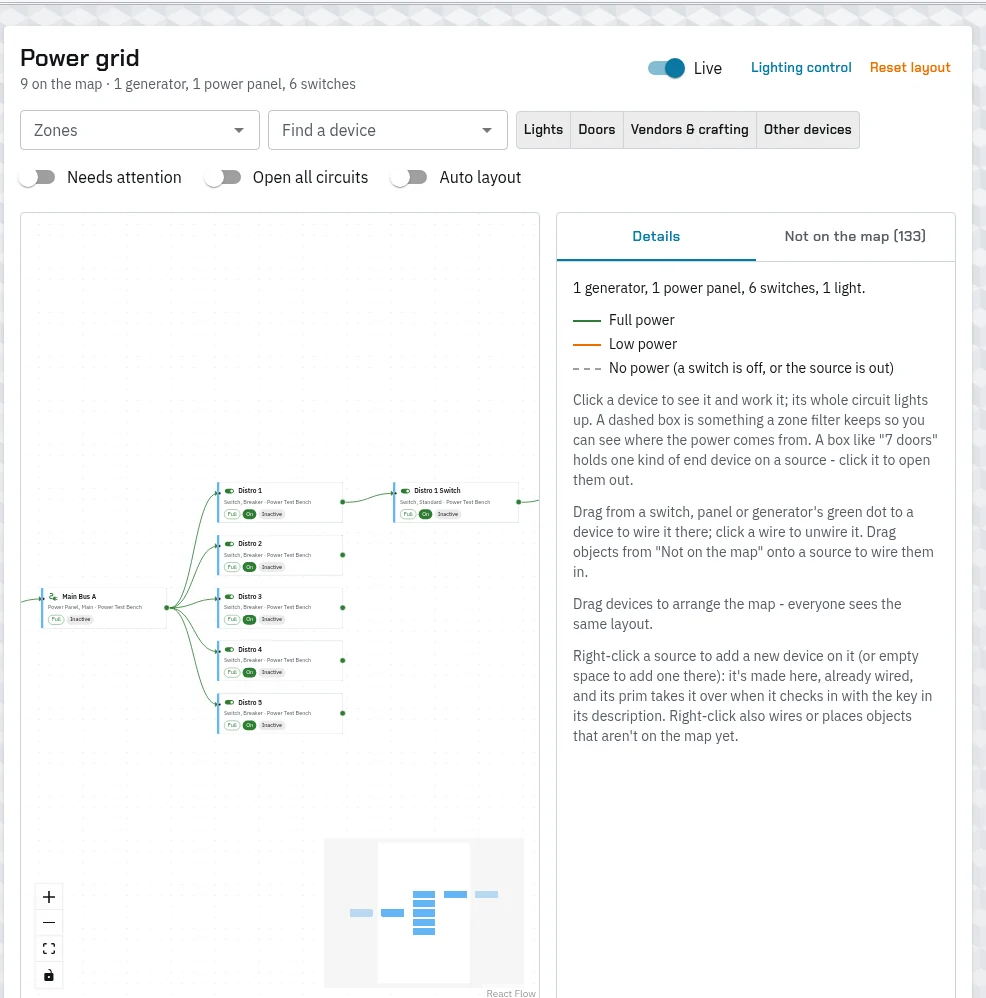
- Click a device to see it: what feeds it, its quick actions and Resync.
- Drag from a source’s green dot to another object to wire it. Click a wire to unwire it.
- Right-click a source for Add a new device on it…: fill in its Name, Type and Zone, press Add and copy Its key into the new prim’s description. The prim takes over that device when it checks in.
- Not on the map lists objects that aren’t drawn yet. Drag them on.
- Needs attention shows objects wired to something that’s gone, ones the server couldn’t reach, and ones a panel or generator has left without power.
Vendors and crafting stations are wired the same way, or through Powered by (env object key) on their own pages.
Generators
A generator’s Generator tab sets its fuel:
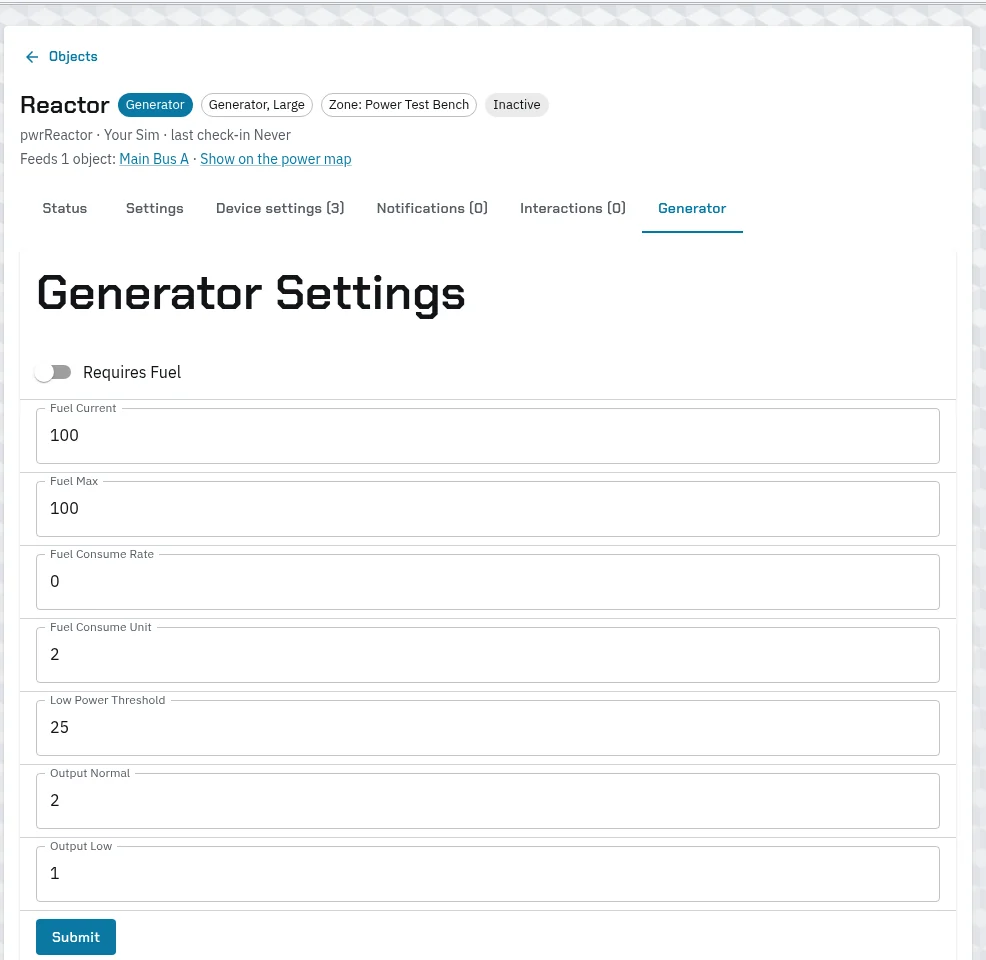
- Requires Fuel off: the generator runs forever at whatever power you set.
- Requires Fuel on: it burns Fuel Consume Rate each minute (unit 1) or each hour (unit 2). At or below Low Power Threshold percent it gives Output Low, and empty it goes off.
- The GeneratorFuel task checks every minute. Saving the tab takes effect at the next check.
- Refuel by raising Fuel Current.
Careful: fuel burns in whole numbers each minute, so a small per-hour rate never burns at all. Use a per-minute rate. And don’t switch on Requires Fuel with Fuel Current at 0: the generator goes off within a minute and takes everything after it with it.
While a generator burns fuel, it sets its own power on each check, so a staff Power Off or Full Power on it doesn’t last.
Restoring power
Switch the switch or breaker back on, set the generator to full power, or refuel it. Everything after it gets its power back at once. Anything a power setting changed, such as doors it locked, stays changed.
Interactions
Players hold an object for 2 seconds to see what they can try on it, such as Inspect, forcing a door or picking a lock. Around the sim shows the player’s side.
An interaction shows only to a player who has every item it needs, the skill it needs, enough energy, and an object in every state it needs. The button shows the interaction’s Description. When they press Continue, it costs energy, rolls against the chance, and on success changes the object, adds or repairs damage, and can drop an item.
Set them up on Setup › Interactions. The editor has:
- Name, Kind, Description and Energy cost.
- Skill needed, Items needed, and how often each item is used up on success or failure.
- On success, set: what changes, such as Unlocked or Open.
- Successes needed and Progress resets after (s), for a job that takes several goes.
- Cooldown (s), and whether it only applies after a failed try.
- Damage on success: positive damages it, negative repairs it.
- Item given on success and its Drop chance (%).
- Only shows when: the states the object has to be in.
The chance comes from a Success formula: numbers, + - * / and [repair], such as 40+[repair]*5, at most 99%. A type’s interactions are copied onto each of its objects the first time a player holds one. Add extras to one object on its Interactions tab.
Lockdowns and alarms on a failed try
An interaction can punish a failure:
- On a fail, lock it down for (s): the door locks and closes at once, for everyone. When the time’s up, the lock goes back to what it was. It doesn’t open the door again.
- On a fail, set off the alarms in its zone: every alarm in the door’s zone is marked as sounding. A door in no zone sets off nothing.
The player’s chat says, for example, “Vault Door locks down for 5 min.” and “The alarm sounds in Cell Block.”
Alarms
Your sim has two kinds of alarm state, and they don’t affect each other:
- The Alarms board makes alarm objects flash and sound in-world. This is what players see and hear.
- An alarm object’s state, sounding or quiet, set by quick actions, interactions and fail rules. It drives notifications, duty consoles and the silence panel, but doesn’t make the object go off.
To raise a real alarm, use the board.
The Alarms board
Storytellers › Alarms:
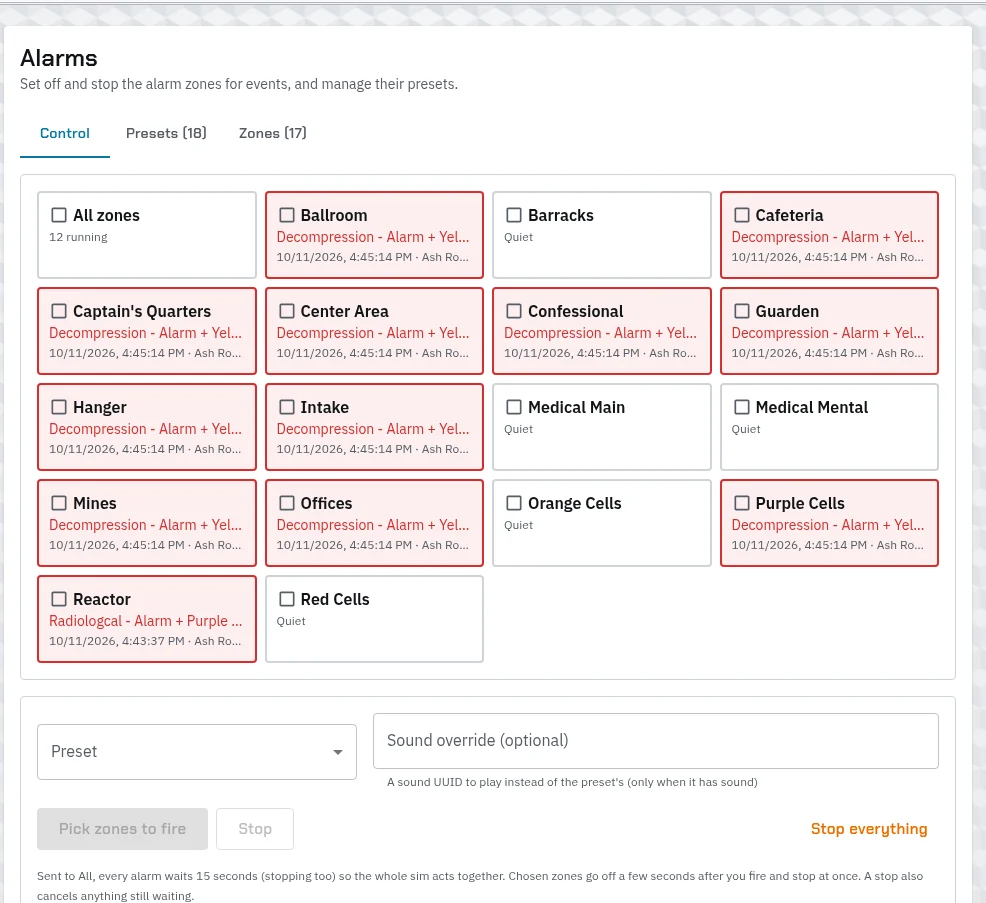
- Tick the zones, or All zones.
- Pick a Preset: its light colour, glow, radius, flashing and sound. Add a Sound override if you like.
- Press Fire on…. Chosen zones go off within a few seconds. All zones waits 15 seconds, so the whole sim goes off together.
- Stop ends the chosen zones, and Stop everything ends all of them.
Admins set up the board’s Zones, each with the In-world object name its alarm objects share, and its Presets. A changed preset only reaches alarms the next time they’re fired. The board talks to alarms through an in-world object named Alarm Server: if it isn’t there, the board shows a warning.
Play a sound, below the board, plays a sound on the chosen zones without lights.
Zones and macros
A zone groups objects by area, on each object’s Settings. World Building › Zones shows one zone’s objects by kind, with buttons for all of them at once, such as Force Lock (all), plus Resync zone.
A macro runs several steps at once on a zone, such as a blackout:
- On World Building › Macros, press New macro, name it and press Create and add steps.
- Add step: pick What it does (Doors: lock / open, Switches: on / off, or Set a device setting such as light colour), its Zone, and if you like Only this category.
- Steps run in order. Press Run now to test it.
Make a pair, such as Blackout and Restore, so you can undo one. Running a macro needs env_edit, and its active macros show on the zone’s page as Run buttons.
Notifications
An object’s Notifications tab, or Setup › Notifications for many at once, sends something when something happens to it:
- When: an interaction succeeds or fails, its status changes, its power changes, or it’s damaged or repaired.
- Do: post to Discord, message a player or a group, change another object or every object in a zone, or alert a duty console.
Messages can use {actor}, {action}, {object}, {region}, {oldValue} and {newValue}. Ordinary door use never sends a notification, only changes the server makes.
Set up a door on a power grid
- Server › Auth Keys: make a key for your objects, if you haven’t.
- World Building › Power grid: right-click the breaker or switch it should hang off, Add a new device on it…, fill in its Name, Type and Zone, and copy Its key.
- In-world, put the door script in the door, with your site’s address, the auth key and its door type, and the key in its description. Reset it, and watch it register.
- On the door’s Settings, set its Mode, and for a card reader its Access list.
- On Setup › Access lists, make the list: for example, Group Guard Allow, and Carries item ID Badge Allow.
- On Setup › Types, decide what its type does With no power: lock, or open.
- Add interactions, and on a sensitive door a lockdown and alarm on failure. Make sure its zone has alarms.
- Test it in-world: tap it as someone allowed and someone not, hold it for the interactions, and cut its breaker to check the power setting. Then check Logs › Environment and Env interactions.
When it doesn’t work
| What happens | Check |
|---|---|
| A door won’t stay locked | Lock it with its Mode, not a quick action. Check its type’s fields don’t set isLocked. |
| A card-reader door opens for everyone | Its mode must be Locked - Access List. If the server is slow, doors open after 15 seconds. |
| A badge doesn’t open a door | The badge has to be worn, not just carried. |
| Players can’t use a switch | Its access list: new switches can start on “nobody”. |
| A door shows Power Low though nothing feeds it | Wire it to a source, or set its power on the Advanced override. It still works. |
| A generator never burns fuel | Use a per-minute burn rate. |
| Everything on a generator went dark | Requires Fuel is on with no fuel. Refuel it or switch fuel off. |
| A failed break-in didn’t sound the alarm | The door needs a zone with alarms in it, and in-world sound comes from the Alarms board. |
| A door stays locked after the power returns | Power settings don’t undo. Unlock it with a quick action or a macro. |