The HUD look
How to set your sim's HUD themes and colours, its Home layout and sizes, the buttons, bars and counters it shows, and its languages.
For staffYou decide how the HUD looks for your players: its art, colours, Home layout and buttons. Players can change their own layout, size and language.
Themes
A theme is a folder of art on the server: the HUD’s background, buttons, bars and icons. Adding a new theme means adding its folder there.
Each group can wear its own theme:
- Pick a group’s theme under Staff, then Groups. Open the group and choose its HUD theme.
- Characters without a group wear the sim’s default theme, the
hud-defaultThemesetting under Server, then Settings, on the Globals tab.
Theme colours
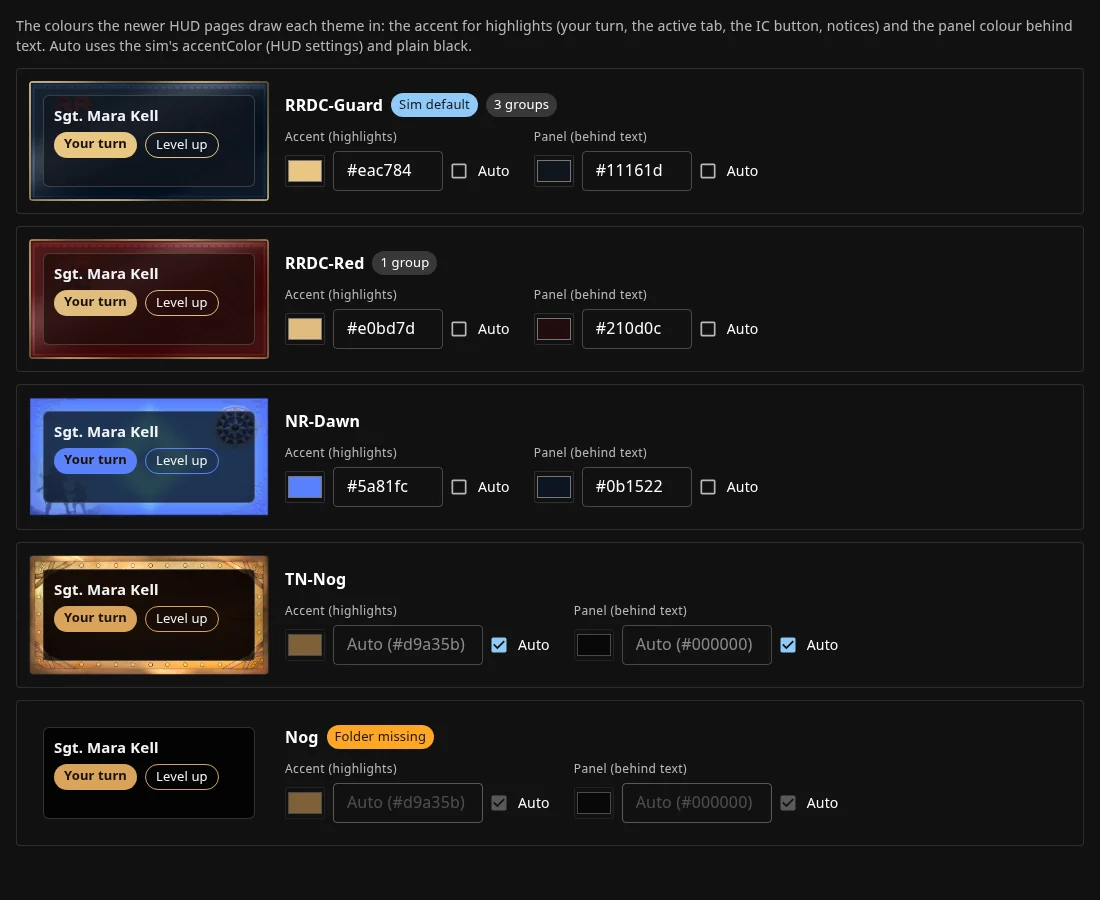
The newer HUD pages draw each theme in two colours you set on the website. These pages are the side menu and portrait Home layouts, the strip, Inventory, the Fight page and the character sheet.
- Go to Server, then Settings, and open the HUD themes tab.
- Find the theme. A preview shows how it looks, with tags for Sim default, how many groups use it, and Folder missing if its art is gone.
- Set Accent (highlights), used for “Your turn”, the active tab, the IC button and notices.
- Set Panel (behind text), the dark colour behind text.
- Press Save.
Tick Auto to use the sim’s accentColor from HUD settings and plain black instead.
The Home layout
Your sim picks the layout players start with, using hudLayout under Server, then HUD settings:
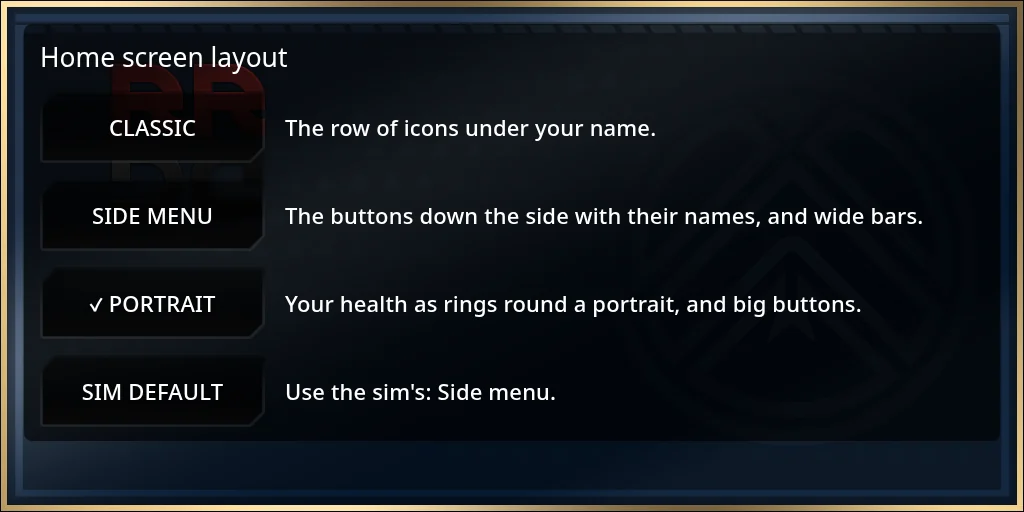
classic: the row of icons under the player’s name.rail: the side menu, with each button’s name and wide bars.tiles: health as rings round a portrait, and big buttons.
Players can pick their own in the HUD under Settings, then Home layout, where the choices read Classic, Side menu and Portrait. Sim default puts them back on yours.
Sizes
Two HUD settings size the panel for everyone:
hudPanelScale: the panel’s size on screen. 1 is standard, from 0.5 to 2.hudDialogScale: how much bigger a long dialog, such as a quest talk, opens than the panel. From 1 to 2, and 1.5 to start with.
Players can choose their own under Settings, then Display: a panel from 75% to 150%, and long dialogs from 100% to 200%. Sim default goes back to yours.
Buttons, bars and counters
Server, then HUD settings, lists every HUD setting by group. Search, or pick a Group. A setting you’ve changed is tagged changed and can go back to its default. For buttons and counters, 1 shows one and 0 hides it, and its order in the group sets where it sits.
- Hud-Buttons: the Home buttons, such as
character,attack(Fight),inventory,trade,dice,rpMode,settingsandhelp. - Hud-Bars-Bottom: the counters along the bottom, such as
status(Effects),quests,bounties,eventsandbank. The Bank counter only shows while the bank is on. - Hud-Bar: up to three bars, each with a show switch, a name and the stat it follows.
- Hud-Color: button, text field and bar colours, and the
accentColor. - Hud-Settings: the default channels, the coin mode (1 for a single currency, 2 for coins), the layout and the sizes.
- Titler and Hud-Titler: what shows over people’s heads.
Languages
Players choose a language in the HUD under Settings, then Language. It changes the HUD and the system’s replies in chat. Lines without a translation yet show in English.
To change any line for your sim, go to Server, then Settings, and open Translations:
- Pick the Language.
- Narrow the list with Everything, HUD, Chat replies or Messages, with Search, or with Only lines still in English.
- Press Translate or Change on a line, type your text and press Save. The line is tagged Changed on this grid and wins over the text the system ships with.
Keep every placeholder in curly brackets, such as {name}, because the system fills them in. Save stays greyed out until they’re all there. To undo a change, press Use the file’s text or Remove. You can change the English lines too. New accounts start in sets the language new players begin with.