Settings
Every page under the HUD's Settings, what each one changes, and the chat commands that do the same.
For playersSettings holds the HUD’s own options: signing in to the website, your chat channels, your titler, your language and the size and layout of the HUD. Press Settings on the Home screen to open it. Most of these you set once, but come back when your chat commands stop working, when the HUD covers too much of your screen, or when you want to change what your titler says.
What’s on the page
Settings lists its buttons in this order. The last four appear only when your sim uses them.
| Button | What it’s for | When you see it |
|---|---|---|
| Web Login | Opens your sim’s website, signed in | Always |
| Set Channels | Your command and RP chat channels | Always |
| Titler | What your titler shows over your head | Always |
| Language | The language of the HUD and its chat replies | Always |
| Display | The size of the HUD panel and long dialogs | Always |
| Home layout | How the Home screen is laid out | Always |
| Ranks | Your ranks in your groups | You’re in a group that has promotions |
| Perks | Spending perk points | Your sim has you pick perks at level-ups |
| Professions | Your professions and sub-profession | Your sim uses profession rules |
| Create Char | Making another character | Your sim makes characters in the HUD |
Language, Display and Home layout belong to your account, so they stay the same when you switch characters. Titler belongs to the character you’re playing.
Web Login
Press Web Login. Second Life asks whether to open a web page. Open it, and your browser signs you in to your sim’s website with this account. You don’t need a password.
- Each link works once. If the page shows only the sign-in form, press Web Login again for a fresh link.
@passreseton your command channel posts a “HUD control panel” link in chat that signs you in the same way.
See Your sim’s website for what you can do there.
Set Channels
This page has two number boxes and a Save button.
- Command Channel: where the HUD listens for
@commands. If it’s 6, you type/6 @help. - RP Channel: anything you type on this channel, the HUD posts in local chat under your character’s name, or your alt name if you’ve set one. If it’s 5, you type
/5 waves hello.
Type the new numbers and press Save. Chat confirms with “Channels updated to Command 6, Roleplay 5.” with your numbers in it. The HUD starts listening on the new numbers straight away, and the old ones stop working.
You can do the same from chat, on your current command channel. Each takes a number:
| Command | What it does |
|---|---|
@account channel <number> |
Sets your command channel. Chat says “Command channel set to” the new number. |
@account rpchannel <number> |
Sets your RP channel. Chat says “Emotes channel set to” the new number. |
Type either one without a number to see its help. Negative numbers work too.
Things to watch for:
- Use two different numbers. If both channels are the same, the HUD treats everything you type there as roleplay. Your commands get posted in local chat under your character’s name and never run.
- Don’t use 0. That’s local chat, so the HUD would repeat everything you say.
- Forgot your command channel? Open Settings, then Set Channels. The boxes show your current numbers. The message the HUD posts when you log in shows them too.
- If your sim rewards roleplay posts, the HUD counts posts on your RP channel that are 20 characters or longer.
Titler
This page sets what your titler shows for the character you’re playing. Alt Name, Title and Info are always there. The four lists appear only if your sim uses them.
- Alt Name: another name for your character. Your titler shows it with your character’s name after it in brackets, and your RP channel posts under it.
- Title: a short title shown before your name.
- Info: a few lines about your character, shown on your titler. Each line you type shows as its own line.
- PVP and Rating: lists of choices your sim sets. They show together on one line of your titler.
- Depth and Intimacy: lists of choices your sim sets. They show together on another line.
Change what you want and press Save. “Saved.” shows under the button for a few seconds, and chat says “Titler information updated.” To remove an alt name, title or info, empty its box and save.
Limits:
- Alt Name and Title keep the first 25 characters. Anything longer is cut off.
- Info can be up to 500 characters. Longer than that and nothing is saved. Chat says “Info text is too long. Maximum 500 characters allowed.”
- Curly brackets
{ }, double quotes and backslashes are taken out of the alt name and title.
The same from chat:
| Command | What it does |
|---|---|
@profile altname <name> |
Sets your alt name. @profile altname reset removes it. |
@profile title <text> |
Sets your title. @profile title reset removes it. |
@profile info <text> |
Sets your info. |
@reload |
Refreshes your titler and the HUD’s bars if they look out of date. |
Tip: Chat sends one line at a time. To give your info more than one line, type it on the Titler page.
Language
Press a language to use it. A tick marks the one you’re using. The HUD changes straight away, and chat says “Language set to” your choice.
The language covers the HUD, the system’s replies in chat and your sim’s website. Some text is still in English while translations are being added. The list shows the languages your sim’s server has.
Display
This page sets how big the HUD is on your screen.
- HUD panel size: 75%, 90%, 100%, 115%, 130% or 150%.
- Long dialogs (quests, menus) open this much bigger: 100%, 125%, 150%, 175% or 200%. Quest talks and long menus open this much bigger than your panel.
Each row also has Sim default, with your sim’s size in brackets. A tick marks your choice. The panel changes size as soon as you press a size, and the page says “Sizes saved.”
Bigger is easier to read but covers more of your screen. However you combine the two, a long dialog never opens more than twice the standard panel size.
Tip: To get the HUD out of the way for a moment, shrink it to a strip or click the HUD on your screen to hide it. See The Home screen.
Home layout
This page sets how the Home screen looks.
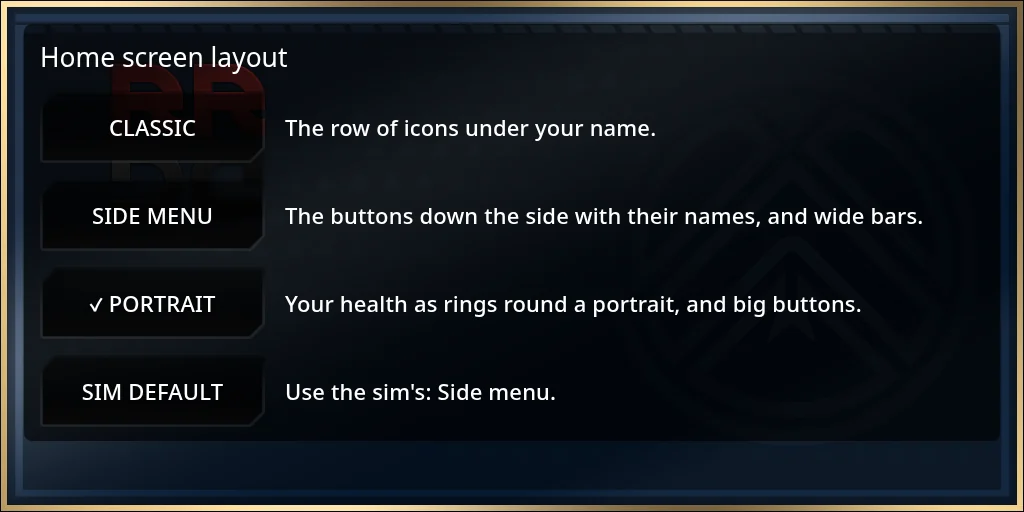
- Classic: the row of icons under your name.
- Side menu: the buttons down the side with their names, and wide bars.
- Portrait: your health as rings round a portrait, and big buttons.
- Sim default: whatever your sim uses. The line beside it names that layout.
Press one. The page says “Layout saved.” and Home changes the next time you go back to it.
Pages your sim may add
Ranks
Shows your rank and influence in each of your groups that has promotions. It’s the same page the Promotion Available notice on Home opens. See Groups and ranks.
Perks
Spend your perk points here. Each perk costs a point, and only a respec takes one back. See Levels, perks and respecs.
Professions
Lists your professions with your skill in each against its cap. If your sim lets you, you can take up one sub-profession here. Its skill stops at a cap your sim sets, and you only get one, so the HUD asks you to confirm first. If you can’t take one yet, the page says why.
Create Char
Opens the character creator for another character. See Create a character. If your sim makes characters on its website instead, there’s no button here. A character-less HUD then says “Please click on the link in local chat to make a character”, and the link is in chat.