Create a character
How to make a character with the HUD's step-by-step creator, and how to switch between your characters.
For playersYour character is who you play on the sim. The HUD has a short step-by-step creator for making one. Some sims make characters on their website instead.
Open the creator
- Your first character: the HUD opens the creator by itself once you’ve accepted the Terms of Service.
- Another character later: on the Home screen press Settings, then Create Char.
The steps
The steps run along the top of the creator. You only see the steps your sim has something for, so you may have fewer than five. Your sim can also rename the labels, so “Race” or “Class” may have another name on your sim.
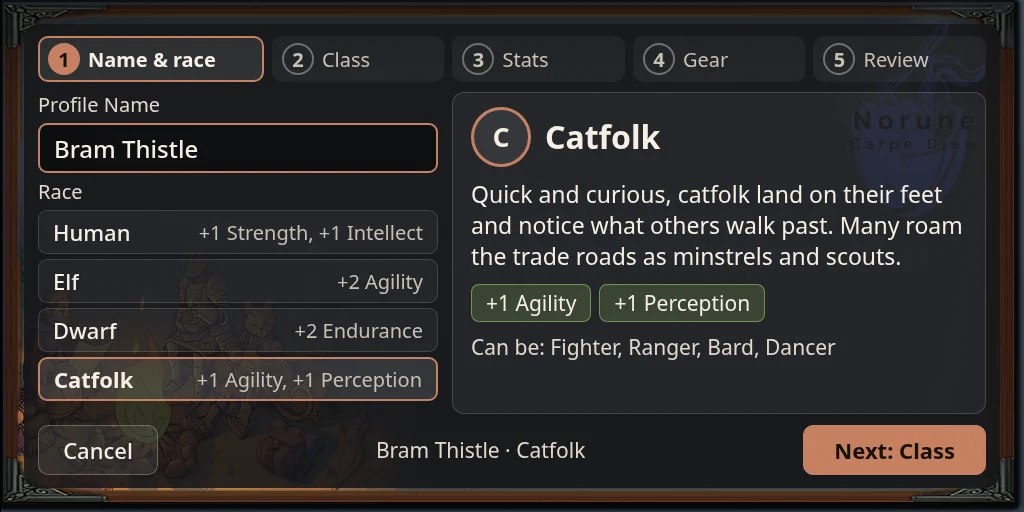
- Name & race. Type your character’s name in Profile Name. This is the name other players see over your head. Then pick a race from the list. The right side shows what the race is, the stat bonuses it gives, and which classes it can take.
- Class. Pick a class. If your sim sorts classes into groups, pick the group first from the tabs. Classes your race can’t take are greyed out and say “not for” your race.
- Stats. Spend your points with the + and − buttons. The counter shows how many points are left. Your race and class add their bonuses on top. You have to spend every point before you can go on.
- Gear. Pick a profession, and your starting gear. Each group of gear lets you pick one item. An item that’s greyed out says which stat it needs. The line “You also start with” lists what you get anyway.
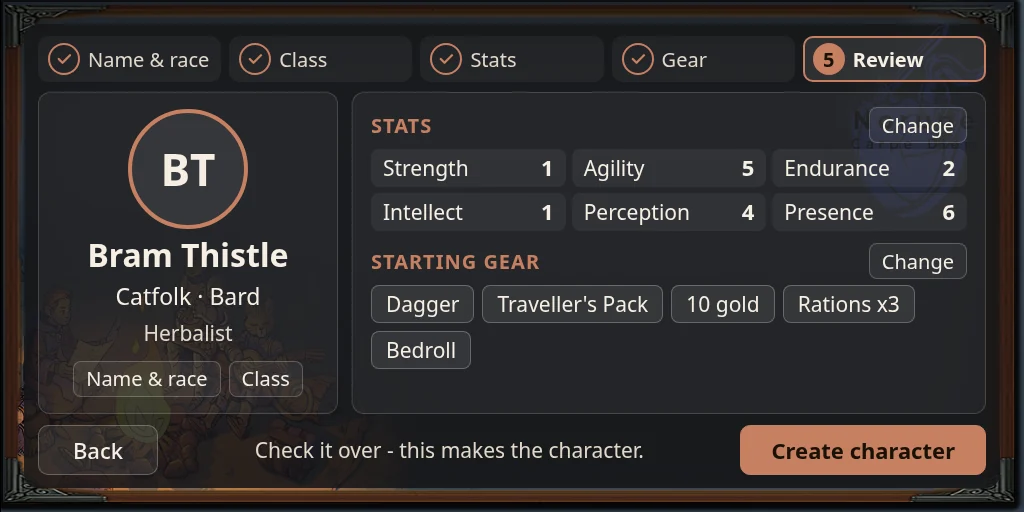
- Review. Check everything over. Press Change beside stats or gear, or the buttons under your name, to go back and fix something.
Press Next at the bottom right to go to the next step. The button names the step it goes to. Back goes one step back. When you’re happy, press Create character on the Review step.
The HUD reloads and opens the Home screen with your new character.
If something stops you
The hint at the bottom of the creator tells you what’s wrong. The usual reasons are:
- You haven’t typed a name.
- You still have stat points to spend.
- You already have a character with that name.
If your sim makes characters on its website
Some sims don’t use the HUD’s creator. In that case the HUD says “Please click on the link in local chat to make a character”, and chat has a link to your sim’s website. Click it, and you’re signed in to the website where you make your character. See Your sim’s website.
If you can’t make a character
If the creator says No new characters, character creation is turned off for your account. Ask your sim’s staff.
Several characters
One account can hold several characters. Only one is active at a time, and that’s the one you play. Your first character becomes active by itself. A character you make later doesn’t, so switch to it when you want to play it.
To switch characters:
- On the Home screen, press Character to open your character sheet.
- Press Switch character.
- Press Load next to the character you want. The one you’re playing now says “Active” after its name.
Chat says “Active character changed to:” and the character’s name.