The Home screen
What the HUD's Home screen shows, the three Home layouts, and how to make the HUD smaller.
For playersThe Home screen is what you see when you open the HUD. It shows your character, anything that needs your attention, and the way to everything else. Your sim chooses which buttons and counters you get, so you may have fewer than listed here.
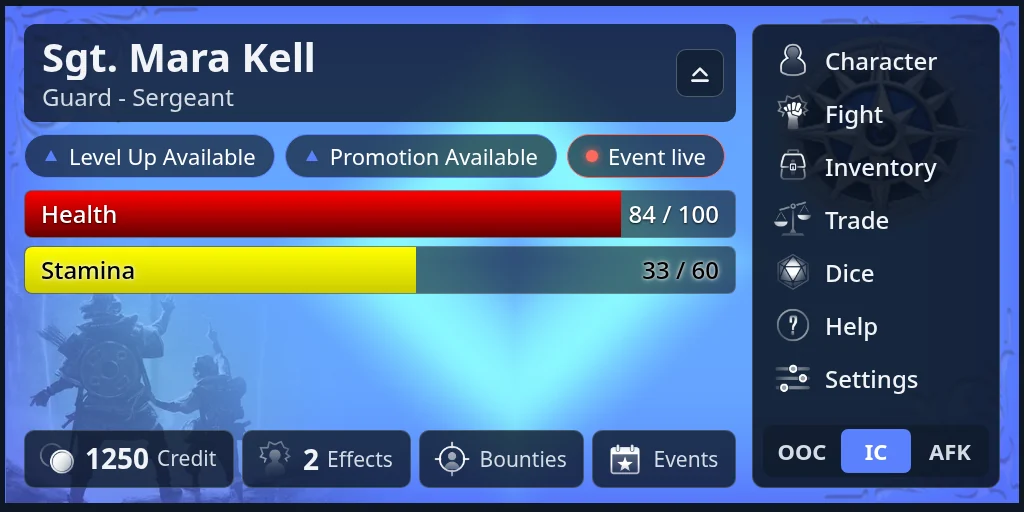
What’s on it
- Your character’s name, with a short line under it that your sim sets, such as your level or rank.
- Bars, up to three, such as health, each with its name and numbers.
- Notices, which appear only when something needs you. Press one to go straight there:
- Level Up Available: you can level up.
- Perk points: you have perk points to spend.
- Promotion Available: you can take a new rank.
- Event live, with a red dot: an event is running now.
- Buttons to the rest of the HUD: Character (your character sheet), Fight, Inventory, Trade, Dice, Help, Settings, and the roleplay mode button, which reads In character, Out of character or Away. See Play in character for that one.
- Counters along the bottom, such as your money, Effects, Quests, Bounties, Events, Bank, Gathering and Reports. A counter with a number shows how many you have. Most counters open their page when you press them.
Help posts links in chat: one to your sim’s website, and others to guides if your sim has set them.
The three layouts
- Classic: the row of icons under your name.
- Side menu: the buttons down the side with their names, and wide bars. In and out of character is a three-way switch: OOC, IC, AFK.
- Portrait: your health as rings round a portrait, and big buttons.
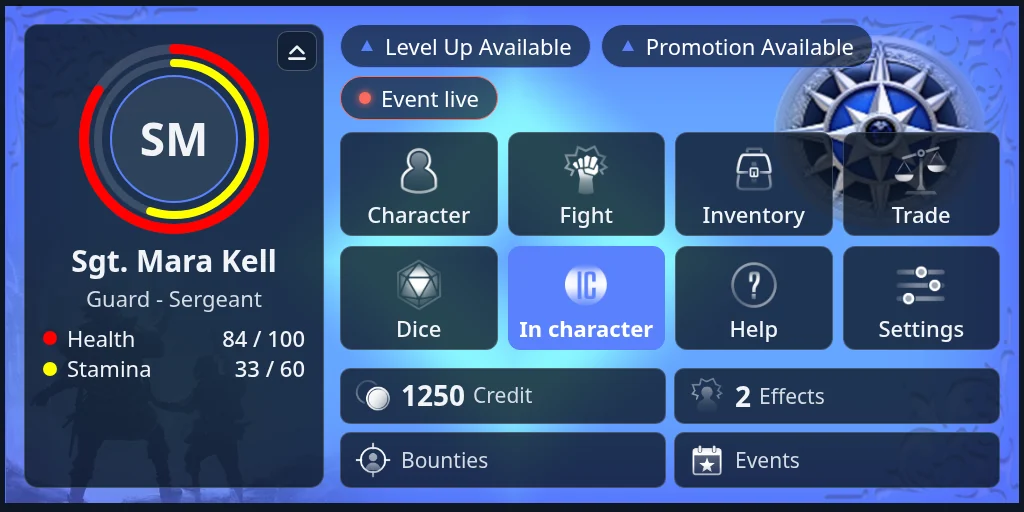
Your sim picks the layout you start with. To change it:
- Press Settings, then Home layout.
- Press the layout you want, or Sim default for your sim’s. Home changes as soon as it’s saved.
Make the HUD smaller
Shrink it to a strip
Press the small button with an upward arrow near the top right, beside your name or portrait (“Shrink the HUD to a strip”). Home becomes a thin strip across the top of the panel with:
- your name and roleplay mode
- the first notice, if there is one
- your bars
- up to three quick buttons, such as Fight, Inventory and Dice
- Open HUD, which brings back the full Home screen
A quick button opens its page at full size, and Home is full size again when you come back. Otherwise the HUD stays a strip until you press Open HUD, even if it reloads.
To hide the panel completely, click the HUD on your screen. Click it again to bring it back.
Change the size
- Press Settings, then Display.
- Under HUD panel size, pick a size from 75% to 150%.
- Under Long dialogs (quests, menus) open this much bigger, pick how big quest talks and long menus open, from 100% to 200%.
The panel changes size straight away. Sim default goes back to your sim’s size. Bigger is easier to read but covers more of your screen.
Other settings
Settings also has Web Login (see Your sim’s website), Set Channels, Titler, Language, and on some sims Ranks, Perks, Professions and Create Char.