Your character sheet
What the HUD's character sheet shows, how to switch characters, and how to set your alt name, title, species, picture and titler presets.
For playersThe character sheet is one page on the HUD that shows who your character is and how they’re doing: bars, stats, what they wear, effects and quests. Open it to check on your character or to switch to another one. This guide also covers your character’s page on the website and the chat commands that change how your character appears.
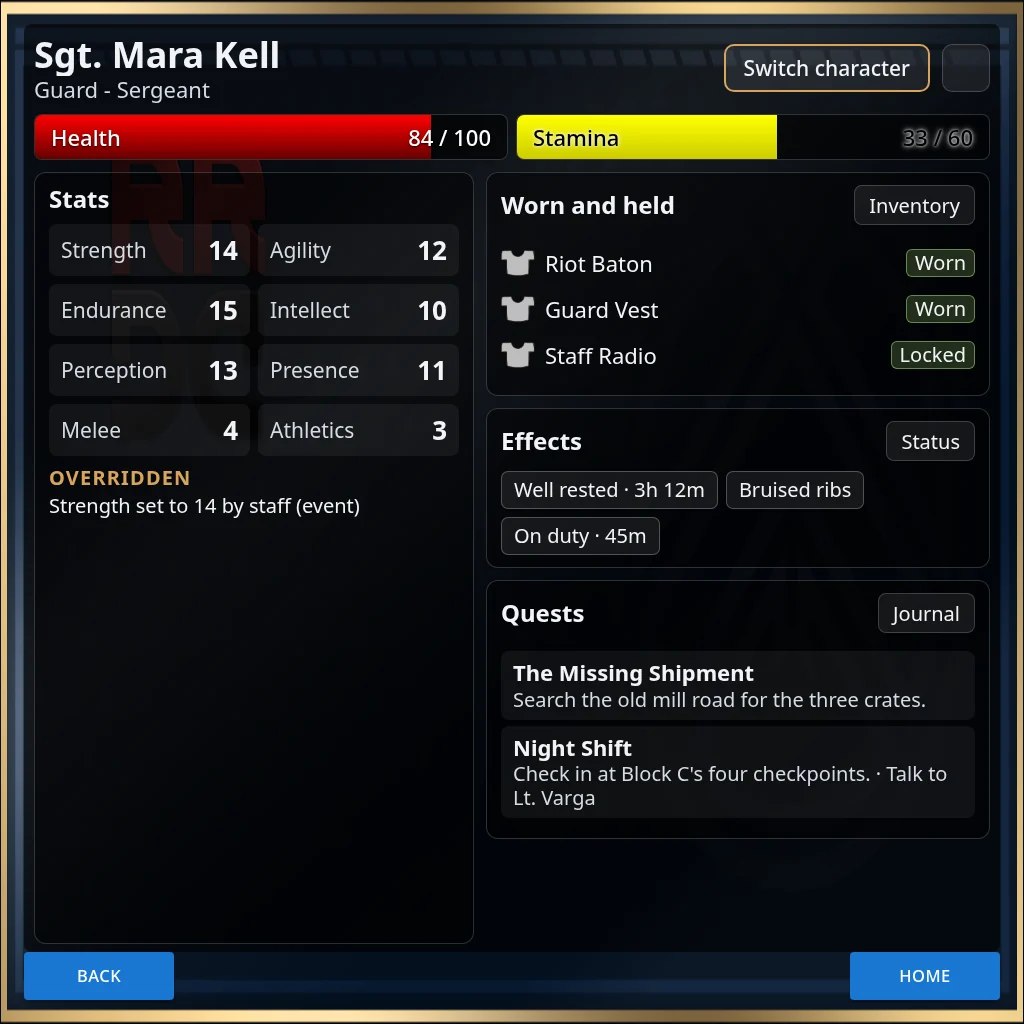
Open the sheet
Press Character on Home. The sheet opens full size. The square button at the top right switches between Half size and Full size. When you leave the sheet, the HUD goes back to its usual size.
The boxes on the right each have a button that opens their own page: Inventory, Status and Journal.
The top
- Your character’s name, and under it a line your sim sets, such as your level and class, or your group and rank.
- Your bars, such as health, the same as on Home, with their numbers.
- Switch character, which opens your list of characters.
Stats
The Stats box lists each stat that’s above 0, with its total. The total includes everything that adds to it: your race and class, the points you spent, perks, skills, what you’re wearing and effects on you. Stats at 0 don’t show. If none are above 0, the box says “No stats above 0.”
Under OVERRIDDEN you see any stat that an effect has set to a fixed number for a while. Each line says which stat, the number it’s set to, the effect that did it, and how long is left.
To see where each number comes from, type @showstats on your command channel. Chat sends you, and only you, one line per source, such as Race [STR] <2>, or Profile [STR] <3> for the points you spent yourself. A long list comes in several messages.
Worn and held
Worn and held lists the items you have on. The tag beside each shows its slot, or Worn, Implanted or Locked. Press Inventory to manage them. If you have nothing on, it says “Nothing worn or held.”
Effects
Effects shows what’s on you now, each with the time left, such as “45m” or “3h 12m”. Effects that last a number of turns in a fight show the turns instead.
The times are as they were when you opened the sheet. They don’t count down while you look, so open the sheet again for fresh ones. Press Status for the full list with each effect’s Remaining Time and Description. If nothing is on you, the box says “No effects on you.”
Quests
Quests lists the quests you’re on. Each one shows what to do next and, when you need to see someone, “Talk to” and their name. Press Journal for the full quest page. See Quests and NPCs.
Switch character
- Press Switch character on the sheet.
- The list shows your characters with their pictures. The one you’re playing has “- Active” after its name.
- Press Load under the character you want.
Chat says “Active character changed to:” and the name, and the HUD reloads for that character. Pressing Load on the active character does nothing. A character that’s been disabled doesn’t show in the list.
You can also switch in chat:
@profile active listlists your characters.@profile active <name>switches to one. Part of the name is enough, in upper or lower case.@profile active nextand@profile active backgo through them in order.
To make a new character, see Create a character.
On the website
Your character has a page on your sim’s website. See Your sim’s website for signing in.
- The top shows the picture, name, alt name, groups and experience, with a Public sheet button.
- Details lets you change Also known as (your alt name, up to 25 characters), Title, Picture (texture UUID), Info and your roleplay preferences. Press Save.
- Stats & skills shows your stats, skills and abilities, and your professions and perks.
Written sheets and approval
If your sim uses written sheets, the page has a Sheet tab with a form about your character. Fill it in and press Submit changes. Staff mark it Approved or Denied, and you can talk it over in the comments under it. Other players only see the approved versions of your sheet.
If your sim uses sheet approval, your titler shows [Char submitted for review] while staff look at it, or [Char denied] if they turn it down.
Name, title, species and picture
Type these on your command channel. On the HUD, Settings, Titler sets the alt name, title and info too. See Settings.
| Command | What it does |
|---|---|
@profile altname <name> |
Sets an alt name. Your titler shows it with your real name after it in brackets. It can be up to 50 characters, but keep it to 25 or fewer so it shows in full everywhere. @profile altname reset removes it. |
@profile title <text> |
Sets a short title in front of your name on the titler. Anything past 25 characters is cut off. @profile title reset removes it. |
@profile species <text> |
Sets your species. It shows on your titler if your sim shows species. @profile species on its own clears it. |
@profile pic <texture UUID> |
Sets your picture, which shows in Switch character and on the website. @profile pic reset puts back your sim’s stock picture. |
@profile info <text> |
Sets the info about your character, up to 500 characters. |
Chat confirms each change, for example “Title set to” and the new title. @profile altname, @profile title, @profile pic or @profile info with nothing after it tells you how to use it.
Titler presets
A preset saves your alt name, title, info and roleplay preferences under a name, so you can swap between looks. Presets belong to the character you saved them on. Your picture and species aren’t part of a preset.
| Command | What it does |
|---|---|
@profile preset save <name> |
Saves what you have now. The name is one word, up to 50 characters, and can’t be the same as another of your presets. |
@profile preset load <name> |
Puts that preset back on and refreshes your titler. |
@profile preset list |
Lists your presets. |
@profile preset delete <name> |
Deletes one. |
@profile preset on its own shows the help.
Tip: Save your everyday look as a preset before you try a new one.
@profile preset loadputs it all back in one go.